Monday, June 6, 2016

Android Sending SMS Example

In some situations, we want to send sms messages from our own Android application. There are two different ways to do such a thing:
The use of SmsManager facilitates the sms sending because it gives us the opportunity to customize this functionality with the manner we want, within our own Activity. In parallel, the use of Intents implies the use of built-in applications and sms clients that are installed in each Android device. In this example, we are going to implement both ways. More specifically, we are going to send a sms by using SmsManager and implicit Intent withSENDTO action and/or VIEW action.
2. Create the layout of the Main Activity
We will put two EditTexts so that the user can fill in a phone number and a message for a SMS. Also, we are going to add three different Buttons, that each one enables a different action and uses a suitable class (smsManager, Intent withSENDTO action, Intent with VIEW action).
Open res/layout/activity_main.xml and go to the respective xml tab. Then paste the following.
activity_main.xml:

<?xml version="1.0" encoding="utf-8"?>
<LinearLayout xmlns:android="http://schemas.android.com/apk/res/android"
    android:id="@+id/linearLayout1"
    android:layout_width="fill_parent"
    android:layout_height="fill_parent"
    android:orientation="vertical" >

    <TextView
        android:id="@+id/text"
        android:layout_width="fill_parent"
        android:layout_height="wrap_content"
        android:text="Complete the fields to send a sms"
        android:textAppearance="?android:attr/textAppearanceMedium" />

    <EditText
        android:id="@+id/phoneNumber"
        android:layout_width="fill_parent"
        android:layout_height="wrap_content"
        android:ems="10"
        android:hint="ex: 1234567890"
        android:inputType="phone" />

    <EditText
        android:id="@+id/smsBody"
        android:layout_width="fill_parent"
        android:layout_height="80dp"
        android:layout_marginBottom="30dp"
        android:hint="Write your sms here...." />

    <Button
        android:id="@+id/smsManager"
        android:layout_width="fill_parent"
        android:layout_height="wrap_content"
        android:text="Send the sms by SmsManager" />

    <Button
        android:id="@+id/smsSIntent"
        android:layout_width="fill_parent"
        android:layout_height="wrap_content"
        android:text="Send the sms by SENDTO" />

    <Button
        android:id="@+id/smsVIntent"
        android:layout_width="fill_parent"
        android:layout_height="wrap_content"
        android:text="Send the sms by VIEW" />

</LinearLayout>

3. Code the Main Activity

SmsManager handles SMS operations and getDefault() method should be called, in order to get an instance of this object. For the intent with ACTION_SENDTO we have to define the data as smsto: and the phone number added at the end. Respectively, for the intent with ACTION_VIEW we will define the type as vnd.android-dir/mms-sms, so only sms-mms providers will launch. Also, we have to add the phone number and the message as extra fields to that intent.
Open src/com.javacodegeeks.android.sendsmstest/MainActivity.java and paste the following.
MainActivity.java:

package com.sbg.android.sendsmstest;

import android.app.Activity;
import android.content.Intent;
import android.net.Uri;
import android.os.Bundle;
import android.telephony.SmsManager;
import android.view.View;
import android.view.View.OnClickListener;
import android.widget.Button;
import android.widget.EditText;
import android.widget.Toast;

public class MainActivity extends Activity {

 private EditText phoneNumber;
 private EditText smsBody;
 private Button smsManagerBtn;
 private Button smsSendToBtn;
 private Button smsViewBtn;

 @Override
 public void onCreate(Bundle savedInstanceState) {
  super.onCreate(savedInstanceState);
  setContentView(R.layout.activity_main);

  phoneNumber = (EditText) findViewById(R.id.phoneNumber);
  smsBody = (EditText) findViewById(R.id.smsBody);
  smsManagerBtn = (Button) findViewById(R.id.smsManager);
  smsSendToBtn = (Button) findViewById(R.id.smsSIntent);
  smsViewBtn = (Button) findViewById(R.id.smsVIntent);

  smsManagerBtn.setOnClickListener(new OnClickListener() {
    public void onClick(View view) {
     sendSmsByManager();
    }
  });
  
  smsSendToBtn.setOnClickListener(new OnClickListener() {
    public void onClick(View view) {
     sendSmsBySIntent();
    }
  });
  
  smsViewBtn.setOnClickListener(new OnClickListener() {
    public void onClick(View view) {
     sendSmsByVIntent();
    }
  });
  
 }
 
 public void sendSmsByManager() {
  try {
   // Get the default instance of the SmsManager
   SmsManager smsManager = SmsManager.getDefault();
   smsManager.sendTextMessage(phoneNumber.getText().toString(), 
     null,  
     smsBody.getText().toString(), 
     null, 
     null);
   Toast.makeText(getApplicationContext(), "Your sms has successfully sent!",
     Toast.LENGTH_LONG).show();
  } catch (Exception ex) {
   Toast.makeText(getApplicationContext(),"Your sms has failed...",
     Toast.LENGTH_LONG).show();
   ex.printStackTrace();
  }
 }
 
 public void sendSmsBySIntent() {
  // add the phone number in the data
  Uri uri = Uri.parse("smsto:" + phoneNumber.getText().toString());
  
  Intent smsSIntent = new Intent(Intent.ACTION_SENDTO, uri);
  // add the message at the sms_body extra field
  smsSIntent.putExtra("sms_body", smsBody.getText().toString());
  try{
   startActivity(smsSIntent);
  } catch (Exception ex) {
   Toast.makeText(MainActivity.this, "Your sms has failed...",
     Toast.LENGTH_LONG).show();
   ex.printStackTrace();
  }
 }
 
 public void sendSmsByVIntent() {
  
  Intent smsVIntent = new Intent(Intent.ACTION_VIEW);
  // prompts only sms-mms clients
  smsVIntent.setType("vnd.android-dir/mms-sms");
  
  // extra fields for number and message respectively
  smsVIntent.putExtra("address", phoneNumber.getText().toString());
  smsVIntent.putExtra("sms_body", smsBody.getText().toString());
  try{
   startActivity(smsVIntent);
  } catch (Exception ex) {
   Toast.makeText(MainActivity.this, "Your sms has failed...",
     Toast.LENGTH_LONG).show();
   ex.printStackTrace();
  }

 }
}

4. Set the SMS Permission

We should set SEND_SMS as permission in the AndroidManifest.xml file, in order to send an SMS via our application. At this point, we should mention that the permission must be defined for smsManager, but it is not necessary for the implicit Intents.
Open AndroidManifest.xml file and go to the respective xml tab. Then paste the permission android.permission.SEND_SMS, as you can see below.
AndroidManifest.xml:

<?xml version="1.0" encoding="utf-8"?>
<manifest xmlns:android="http://schemas.android.com/apk/res/android"
    package="com.dfd.android.sendsmstest"
    android:versionCode="1"
    android:versionName="1.0" >

    <uses-sdk
        android:minSdkVersion="8"
        android:targetSdkVersion="19" />
    
    <uses-permission android:name="android.permission.SEND_SMS" />

    <application
        android:allowBackup="true"
        android:icon="@drawable/ic_launcher"
        android:label="@string/app_name"
        android:theme="@style/AppTheme" >
        <activity
            android:name="com.javacodegeeks.android.sendsmstest.MainActivity"
            android:label="@string/app_name" >
            <intent-filter>
                <action android:name="android.intent.action.MAIN" />

                <category android:name="android.intent.category.LAUNCHER" />
            </intent-filter>
        </activity>
    </application>

</manifest>

5. Run the application

To run our application, right click on our project → Run as → Android Application. The AVD will appear with the app loaded.
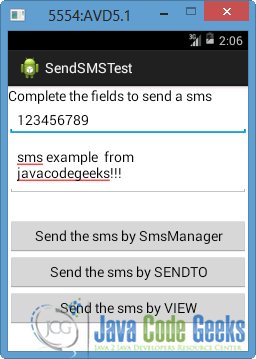
Fill in a phone number and a message in order to send a sms, as shown in the picture below.
ADVSmsProj1
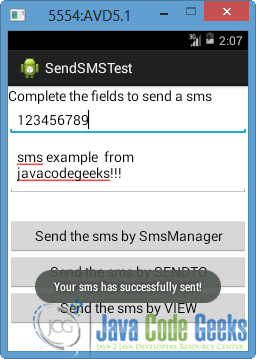
Lets press “Send the sms by SmsManager” button. The sms will be sent via smsManager, so a Toast will appear which certify the success of sms sending. Otherwise, an error message would be appeared.
ADVSmsProj2
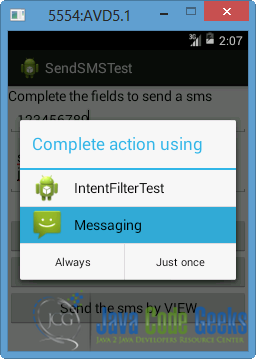
Now press the “Send the sms by SENDTO” button. If more than one applications, that use a SENDTO action exist, the user will choose one of the displayed ones. For example, our emulator contains an application that uses an implicit intent withACTION_SENDTO, as shown in the picture.
ADVSmsProj3
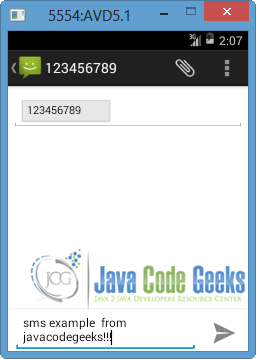
Lets choose the default Android app for sms. As you can see in the picture below, the fields are completed with the elements that the user gave previously.
ADVSmsProj4
Finally if we press the “Send the sms by VIEW” button, the device’s Built-in SMS application will launch with the appropriate fields filled in, same as shown in the image above.
How to make a phone call in Android

1 Android Layout Files

Simpel layout file, to display a button.
File : res/layout/main.xml
Markup
<?xml version="1.0" encoding="utf-8"?>
<LinearLayout xmlns:android="http://schemas.android.com/apk/res/android"
    android:layout_width="fill_parent"
    android:layout_height="fill_parent"
    android:orientation="vertical" >
 
    <Button
        android:id="@+id/buttonCall"
        android:layout_width="wrap_content"
        android:layout_height="wrap_content"
        android:text="call 0377778888" />
            
</LinearLayout>
2. ActivityUse below code snippet to make a phone call in Android.
Java
 Intent callIntent = new Intent(Intent.ACTION_CALL);
 callIntent.setData(Uri.parse("tel:0377778888"));
 startActivity(callIntent);
File : MainActivity.java – When the button is call, make a phone to 0377778888.
Java
package com.mkyong.android;

import android.app.Activity;
import android.content.Intent;
import android.net.Uri;
import android.os.Bundle;
import android.view.View;
import android.view.View.OnClickListener;
import android.widget.Button;

public class MainActivity extends Activity {

 private Button button;

 public void onCreate(Bundle savedInstanceState) {

  super.onCreate(savedInstanceState);
  setContentView(R.layout.main);

  button = (Button) findViewById(R.id.buttonCall);

  // add button listener
  button.setOnClickListener(new OnClickListener() {

   @Override
   public void onClick(View arg0) {

    Intent callIntent = new Intent(Intent.ACTION_CALL);
    callIntent.setData(Uri.parse("tel:0377778888"));
    startActivity(callIntent);

   }

  });

 }

}
3 Android ManifestTo make a phone call, Android need CALL_PHONE permission.
Markup
<uses-permission android:name="android.permission.CALL_PHONE" />
File : AndroidManifest.xml
Markup
<?xml version="1.0" encoding="utf-8"?>
<manifest xmlns:android="http://schemas.android.com/apk/res/android"
    package="com.mkyong.android"
    android:versionCode="1"
    android:versionName="1.0" >

    <uses-sdk android:minSdkVersion="10" />

 <uses-permission android:name="android.permission.CALL_PHONE" />
    
    <application
        android:icon="@drawable/ic_launcher"
        android:label="@string/app_name" >
  
        <activity
            android:label="@string/app_name"
            android:name=".MainActivity" >
            <intent-filter >
                <action android:name="android.intent.action.MAIN" />
                <category android:name="android.intent.category.LAUNCHER" />
            </intent-filter>
        </activity>
    </application>

</manifest>

Saturday, June 4, 2016

Populate GridView with ImageView and TextView from Mysql database In Android

1.First Activity Class for GrideView Main
public class New_GridView_Activity extends AppCompatActivity {

    //Web api url
    public static final String DATA_URL = "http://172.107.10.20/SSS/sss/New_Retrive_Image_Non_Encode_Direct_From_Server.php";

    //Tag values to read from json
    public static final String TAG_IMAGE_Name = "PO_Image";
    public static final String TAG_NAME = "PO_Name";

    //GridView Object
    private GridView gridView;

    //ArrayList for Storing image urls and titles
    private static ArrayList<String> images;
    private static ArrayList<String> names;
    private ProgressDialog pDialog;
    @Override
    protected void onCreate(Bundle savedInstanceState) {
        super.onCreate(savedInstanceState);
        setContentView(R.layout.main_gridview_layout);

        Toolbar toolbar = (Toolbar) findViewById(R.id.toolbarzoommm);
        toolbar.setLogo(R.drawable.logo);
        setSupportActionBar(toolbar);
       // getSupportActionBar().setDisplayHomeAsUpEnabled(true);
        toolbar.setNavigationOnClickListener(new View.OnClickListener() {
            @Override
            public void onClick(View v) {
                finish();
            }
        });

        gridView = (GridView) findViewById(R.id.gridView1);

        images = new ArrayList<>();
        names = new ArrayList<>();
        //Calling the getData method
        getData();

    }

    public void getData() {

        AsyncHttpClient client = new AsyncHttpClient();
        RequestParams params = new RequestParams();
        client.post(DATA_URL, params, new AsyncHttpResponseHandler() {

            @Override
            public void onStart() {
                pDialog = new ProgressDialog(New_GridView_Activity.this);
                pDialog.setMessage("Sending Request..");
                pDialog.setIndeterminate(false);
                pDialog.setCancelable(true);
                pDialog.show();
            }

            @Override
            public void onFinish() {
                super.onFinish();
                pDialog.dismiss();
            }

            @Override
            public void onSuccess(String response) {
                //  super.onSuccess(response);
                Log.d("Rs service_ReloadSqlDB res ", response);
                try {
                    JSONArray jsonArray = new JSONArray(response);

                    if (jsonArray.length() > 0) {

                        for (int i = 0; i < jsonArray.length(); i++) {
                            JSONObject jsonObject = jsonArray.getJSONObject(i);

                            String img = jsonObject.getString(TAG_IMAGE_Name);

                            images.add(img);
                            names.add(jsonObject.getString(TAG_NAME));

                        }
                        MainFragment_CustomAdapter_Gridview gridViewAdapter = new MainFragment_CustomAdapter_Gridview(New_GridView_Activity.this, images, names);

                        gridView.setAdapter(gridViewAdapter);

                    } else {
                        Toast.makeText(New_GridView_Activity.this, "No Data Found", Toast.LENGTH_LONG).show();
                    }

                } catch (JSONException e) {
                    Log.d("Response Data Status:", e.getLocalizedMessage());
                }
            }

            @Override
            public void onFailure(Throwable throwable) {
                super.onFailure(throwable);
                Log.d(" RS onFailure ", throwable.toString());
            }
        });
    }

}
2.Adapter Class for Grid-view Main
I get Image And Text from Server as a String using JSON with PHP Web API From MySQL Database. 
NB: I Use "android-async-http-1.3.1.jar" Jar file in libs folder for  web request .
 ( AsyncHttpClient ). use build.gradle = compile files('libs/<android-async-http-1.3.1.jar>')

public class MainFragment_CustomAdapter_Gridview extends BaseAdapter {
    private Context context;
    //Array List that would contain the urls and the titles for the images
    private ArrayList<String> images;
    private ArrayList<String> names;

    public MainFragment_CustomAdapter_Gridview(Context context, ArrayList<String> images, ArrayList<String> names) {
        //Getting all the values
        this.context = context;
        this.images = images;
        this.names = names;
    }
    @Override
    public int getCount() {
        return images.size();
    }
    @Override
    public Object getItem(int position) {
        return images.get(position);
    }
    @Override
    public long getItemId(int position) {
        return 0;
    }
    @Override
    public View getView(int position, View convertView, ViewGroup parent) {
        //Creating a linear layout
        View grid;
        if (convertView == null) {
            grid = new View(context);
            LayoutInflater inflater = LayoutInflater.from(context);
            grid = inflater.inflate(R.layout.mainfragment_customeadapter_layout, parent, false);
        } else {
            grid = (View) convertView;
        }

        ImageView imageView = (ImageView) grid.findViewById(R.id.imageView_Im);
        TextView textView = (TextView) grid.findViewById(R.id.textView_Name);

        final String getImage = images.get(position);

        InputStream stream = new ByteArrayInputStream(Base64.decode(getImage.getBytes(), Base64.DEFAULT));

        Bitmap theImage = BitmapFactory.decodeStream(stream);

        imageView.setImageBitmap(theImage);

        textView.setText(names.get(position));

        final String name = names.get(position);

        imageView.setOnClickListener(new View.OnClickListener() {
            @Override
            public void onClick(View v) {

                Intent i = new Intent(context, Product_Details_Activity.class);
                //  Pass image index
                i.putExtra("id", getImage);
                i.putExtra("text", name);
                context.startActivity(i);
            }
        });
        return grid;
    }
}
3.Use this layout class in Adapter class

<?xml version="1.0" encoding="utf-8"?>
<LinearLayout xmlns:android="http://schemas.android.com/apk/res/android"
    android:orientation="vertical"
    android:layout_width="match_parent"
    android:layout_height="match_parent">
    <ImageView
        android:id="@+id/imageView_Im"
        android:layout_width="88dp"
        android:layout_height="88dp"
        android:src="@drawable/sp1"
        android:layout_below="@+id/textView_pName"
        android:layout_gravity="center_horizontal" />
    <TextView
        android:id="@+id/textView_Name"
        android:layout_width="wrap_content"
        android:layout_height="wrap_content"
        android:textSize="22dp"
        android:text="TextView"
        android:layout_gravity="center_horizontal" />
</LinearLayout>

4.3.Use this layout class in Main class
<?xml version="1.0" encoding="utf-8"?>
<RelativeLayout xmlns:android="http://schemas.android.com/apk/res/android"
    android:orientation="vertical" android:layout_width="match_parent"
    android:layout_height="match_parent">
    <include
        android:id="@+id/toolbarzoommm"
        layout="@layout/tool_bar"
        />
    <LinearLayout
        android:layout_height="match_parent"
        android:layout_width="match_parent"
        android:orientation="vertical"
        android:layout_marginTop="50dp"
        android:weightSum="1"
        >
        <TextView
            android:id="@+id/textView1"
            android:layout_width="wrap_content"
            android:layout_height="wrap_content"
            android:textSize="25dp"
            android:layout_marginTop="0dp"
            android:layout_gravity="center"
            android:textStyle="bold"
            android:text="Products Item List..."
            android:layout_centerHorizontal="true" />
        <GridView
            android:id="@+id/gridView1"
            android:layout_width="match_parent"
            android:layout_height="match_parent"
            android:layout_alignParentLeft="true"
            android:layout_below="@+id/textView1"
            android:numColumns="2" >
        </GridView>
    </LinearLayout>

</RelativeLayout>
5.Use Internet Permission in Manifest class
 <uses-permission android:name="android.permission.INTERNET" />
NB: Store Image in MySQL Database BLOB type/ Formate.

Run your Application. Please comment any Query.